2.3. Customer operations
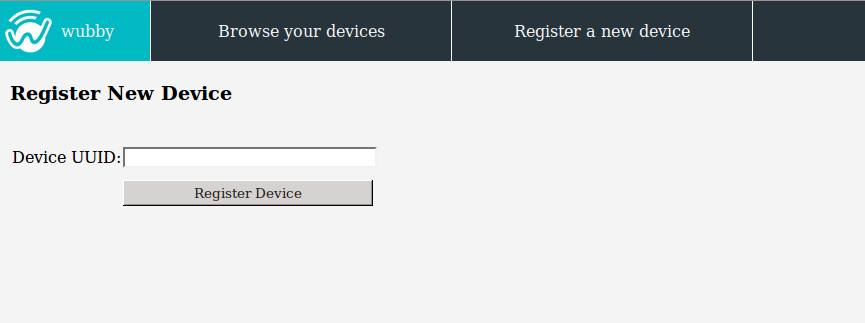
2.3.1. Register a new device
Note
The “device” refers to a commercial wubby enabled product that a user has aquired (for example a SONY light bulb). See section “Add a product for more information on how products are added in the wubby cloud.
Any wubby enabled device runs a default application. To update the device and install other applications on it, the device has to be registered on the wubby Cloud, using the uuid number which lies on an exposed spot on the device. When the device gets registered it is presented in the wubby Client with its name, which has the format: <devname_*uuid*>, for example devname_46cb01c6ff781756d76636e7f210ecfe
2.3.2. Browse devices
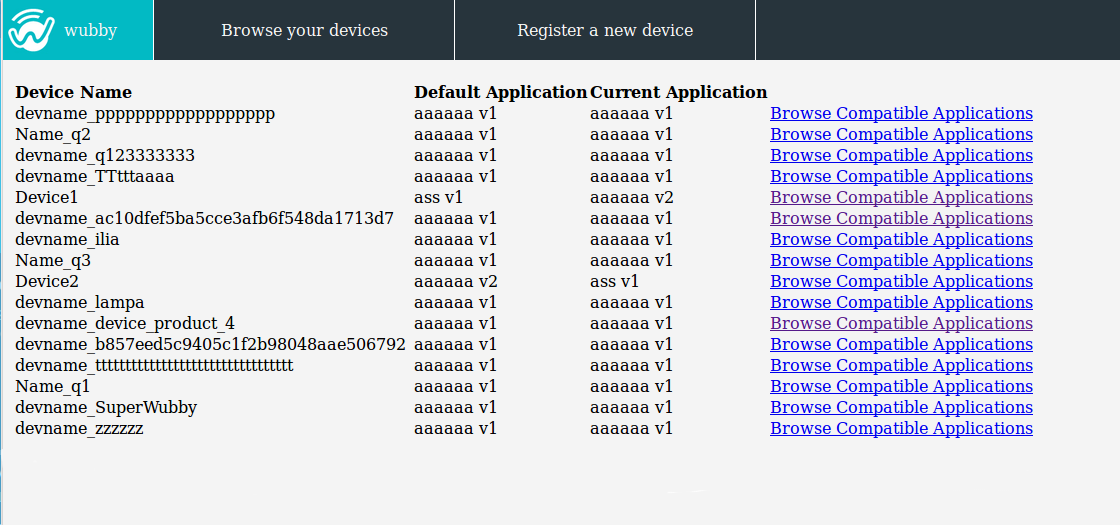
Through the wubby Client a customer has an overview of all his registered devices, as well as the applications he has aquired and all the compatible applications (see next paragraph, Browse compatible applications).
Browse compatible applications
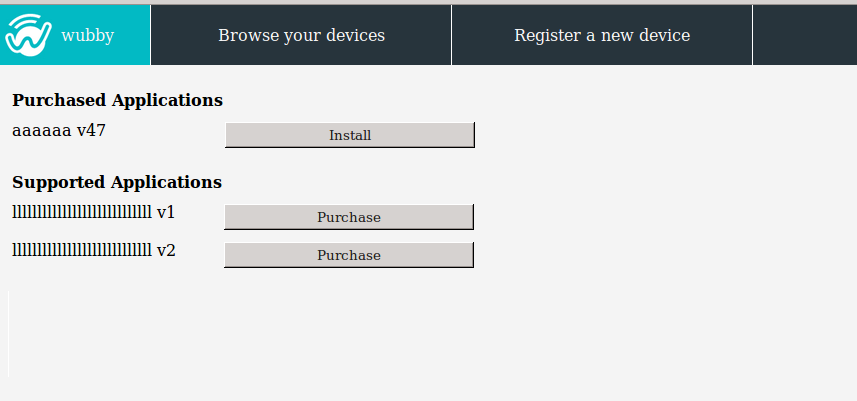
All the available applications compatible with a wubby enabled device are presented when selecting this option, as shown in the figure below. As one can see, they are devided into two categories: “purchased” and “supported applications”. The “purchased applications” are the ones that can be selected to be set as the running application of the device. The “supported applications” have first to be purchased before the user installs them on the device.
Install application on device
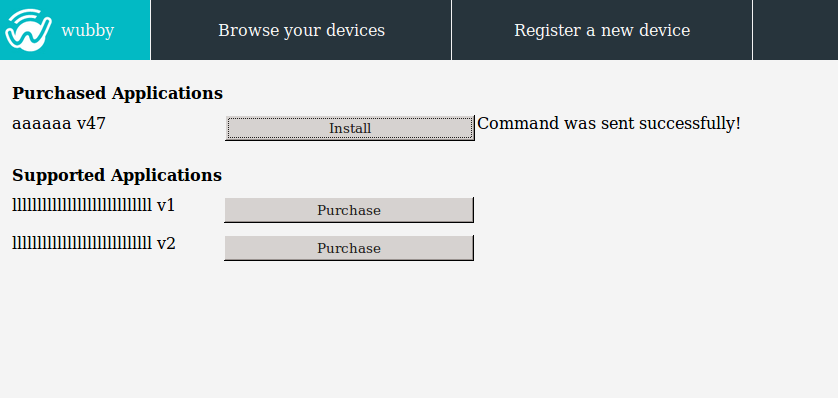
The installation of an application on a wubby enabled device is very easy: just press “Install” as shown in the figure below.
Note
The “purchase” option will be available soon.
